
Download Skitch – Free Screen Capture, Annotation & Sharing Tool
Overview
Skitch, now part of the Evernote family, is a lightweight yet surprisingly capable screen‑capture and image‑sharing program that has earned a loyal following among designers, educators, and everyday computer users. Its core mission is simple: let you snap, annotate, and share visual information in seconds without the overhead of a full‑blown image editor. The app’s hallmark is the cross‑hair cursor that lets you pinpoint the exact area you want to capture, whether it’s a small UI element, a portion of a document, or an entire desktop.
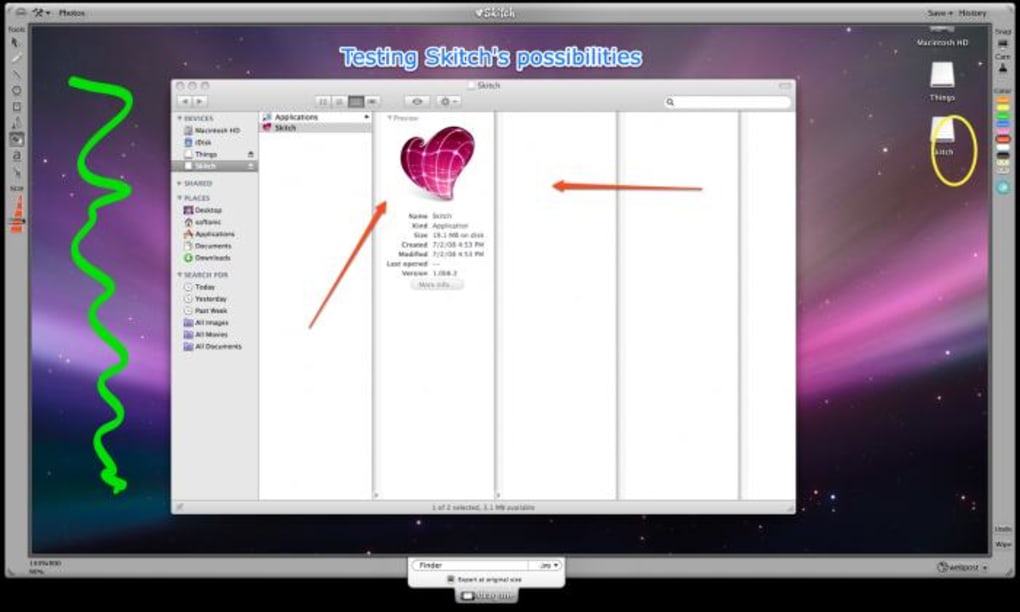
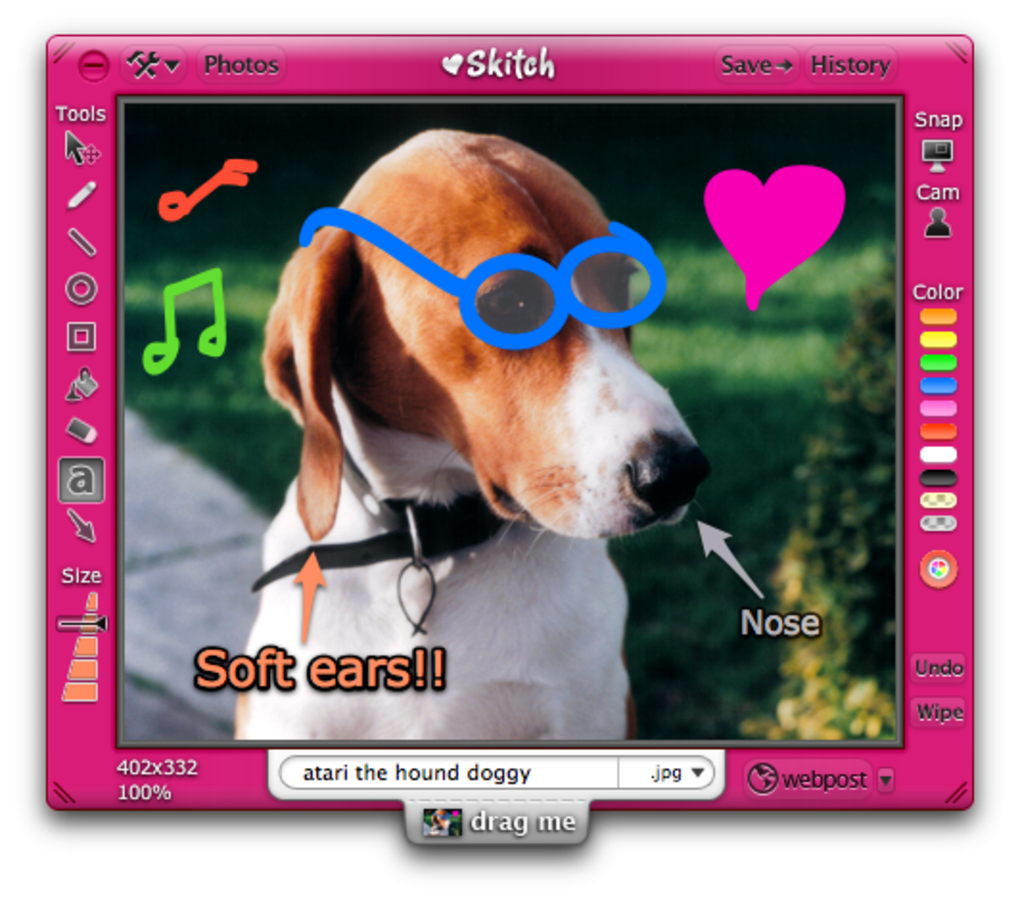
Once captured, Skitch opens a canvas‑like overlay where you can add arrows, shapes, text, and basic drawing tools in any color you like. While the editing toolbox is intentionally minimal, the experience feels playful and intuitive—perfect for quick feedback loops, bug reports, or visual brainstorming sessions. In addition to static screenshots, Skitch can record short video clips using your device’s built‑in camera (iSight on Mac or webcam on Windows), making it a handy companion for creating quick tutorials or walkthroughs.
A built‑in “Webpost” button streams your annotated image directly to a Skitch account or any linked Evernote notebook, turning a simple snapshot into a collaborative asset instantly. Frequent updates focus on stability, bug fixes, and tighter integration with Evernote, ensuring that the tool remains both secure and reliable for personal and professional use.
Key Features
- Cross‑hair precise capture: Instantly select any region on the screen with a high‑visibility crosshair that snaps to pixel‑perfect edges.
- Canvas overlay: A movable, resizable annotation pane that stays on top of other windows, letting you work without losing context.
- Annotation toolbox: Simple yet colorful pens, arrows, shapes, and text boxes that can be resized and recolored on the fly.
- Video capture: Record short clips from your iSight or webcam for quick demos or feedback loops.
- One‑click sharing: The “Webpost” button uploads directly to your Skitch cloud, Evernote, or shares via a public URL.
- Multi‑platform sync: Your annotated images sync across Mac, Windows, iOS, and Android devices linked to the same Skitch account.
- Free for personal use: No hidden fees; the core capture and annotation features are completely free.
- Evernote integration: Drag‑and‑drop annotated screenshots into Evernote notes for seamless knowledge management.
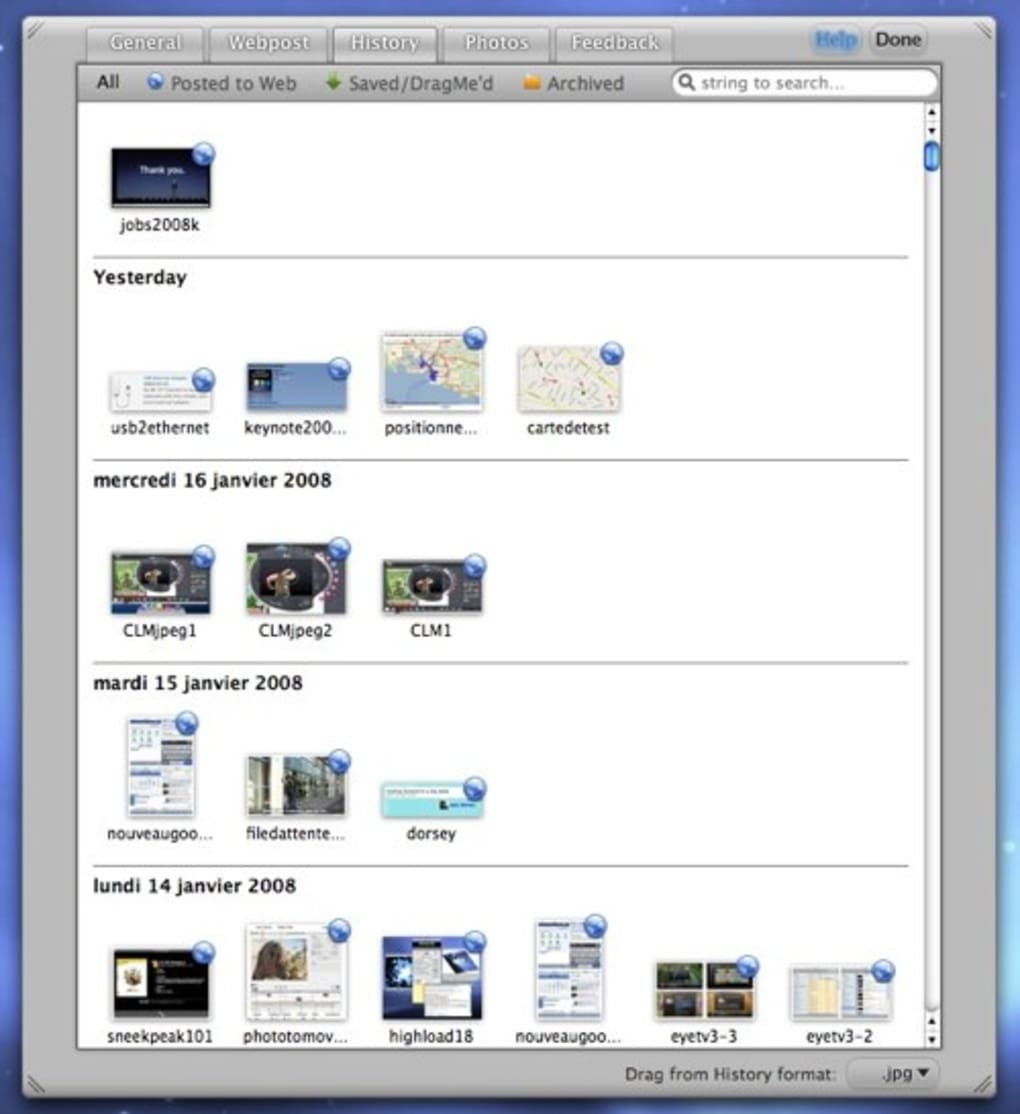
While Skitch does not aim to replace professional graphics suites like Photoshop, its streamlined feature set is intentionally designed for speed. The limited toolbox keeps the interface uncluttered, which many users appreciate when they need to produce visual notes quickly. Additionally, the ability to store images in the cloud and retrieve them on any device eliminates the friction of emailing screenshots back and forth.
For teams that already rely on Evernote for documentation, Skitch becomes a natural extension—capturing an issue, annotating it, and instantly attaching it to a shared notebook. The video capture feature, though modest in length, adds a layer of dynamism that pure screenshot tools lack, making it useful for product demos, bug reporting, or short instructional clips. Overall, Skitch balances simplicity with enough flexibility to satisfy both casual users and power users looking for a fast, secure way to share visual information.
Installation & Daily Workflow
Getting started with Skitch is straightforward. For Windows and macOS users, simply visit the official Skitch download page, click the “Download for Windows” or “Download for macOS” button, and run the installer. The installer is signed, ensuring a secure installation process.
Mac users will see a standard .dmg file; drag the Skitch icon into the Applications folder. Windows users receive an .exe that guides you through a typical wizard—accept the license, choose an install location, and let the program copy files. Mobile users can locate Skitch for iOS or Android in their respective app stores; the app is listed under “Skitch – Snap.
Mark up. Share.” and is free to install.
Once installed, launch Skitch and sign in with your Evernote credentials or create a new Skitch‑specific account. The first launch presents a brief tutorial highlighting the cross‑hair capture mode, annotation tools, and the Webpost sharing button. To capture a screenshot, press the global hotkey (⌘⇧5 on macOS or Ctrl + Shift + S on Windows) or click the Skitch icon in the menu bar/system tray and select “Capture.” Drag the cross‑hair over the area you want, release the mouse button, and the canvas overlay appears instantly.
Here you can add arrows, text, or shapes by selecting the appropriate icon from the toolbar. Adjust line thickness, color, and opacity with simple sliders. When you’re satisfied, click “Webpost” to upload to the cloud, or “Save” to store locally.
For video capture, click the camera icon, choose the source (iSight, webcam), and record up to 30 seconds (or the limit set by the app). The video is automatically added to your Skitch gallery for quick sharing.
In day‑to‑day use, Skitch shines as a “visual sticky note.” Developers use it to capture UI bugs and annotate directly on the screen, then drop the image into a Jira ticket via the Evernote integration. Teachers snap a slide, highlight key points, and share the link with students instantly. Marketing teams create quick mock‑ups, annotate feedback from clients, and archive the conversation in a shared notebook. Because the app runs in the background and can be summoned with a hotkey, it never disrupts workflow—just a few clicks and you have a polished, shareable image. The seamless sync across devices means you can start a capture on a laptop, add final notes on a phone, and still have the same version available on any platform.
Compatibility, Pros & Cons
Skitch is built to work across the major desktop and mobile operating systems. The Windows 10/11, macOS 10.13 and later, iOS 13 and later, Android 8 and later are officially supported, and the app receives regular updates to stay compatible with the latest OS releases. For enterprise environments, Skitch can be deployed via standard MSI or PKG installers, and the cloud sync respects corporate firewalls when configured with proxy settings. While the core functionality is identical across platforms, the desktop version offers a richer set of hotkeys and a more expansive canvas, whereas the mobile app focuses on quick capture and immediate sharing.
Pros
- Fast, pixel‑accurate screen capture with cross‑hair precision.
- Intuitive annotation tools that are easy for beginners.
- One‑click cloud sharing integrates directly with Evernote.
- Free for personal and small‑team use; no hidden subscription fees.
- Cross‑platform sync keeps your visual notes accessible everywhere.
- Lightweight installer and low system resource usage.
Cons
- Limited brush and pen variety compared to full‑featured graphic editors.
- Video capture length is capped, which may not suit longer tutorials.
- Some users report occasional lag on high‑resolution monitors.
- Advanced features such as layer management are absent.
- Requires an Evernote account for full cloud functionality.
Skitch remains a standout tool for anyone who needs to capture, annotate, and share visual information quickly. Its minimalist design keeps the learning curve shallow, while the Evernote integration adds powerful collaboration capabilities. Although it lacks the depth of a Photoshop‑style editor, its speed and ease of use make it a go‑to solution for daily workflows across Windows, macOS, iOS, and Android.
FAQ
Is Skitch completely free or does it have hidden costs?
Skitch is free for personal use. All core capture, annotation, and sharing features are available without a subscription. A paid Evernote plan is only required if you want advanced Evernote storage or team collaboration features.
Can I use Skitch without an Evernote account?
Yes, you can use Skitch locally to capture and annotate images. However, the one‑click Webpost sharing and cloud sync features require a Skitch/Evernote account.
What file formats does Skitch export?
Skitch exports annotated screenshots as PNG or JPEG. Video captures are saved as MP4. You can also copy the image to the clipboard for immediate pasting into other applications.
Is there a limit to how many screenshots I can store in the cloud?
Free accounts have a storage cap of 2 GB for Skitch images, which is ample for most users. Upgrading to a paid Evernote plan increases the cloud storage limit.
How secure is the data I upload to Skitch?
All uploads are encrypted in transit using HTTPS, and stored images are encrypted at rest on Evernote’s servers. You can control who sees each image by setting its privacy level before sharing.
Conclusion & Call to Action
If you’re looking for a fast, reliable, and free way to capture screenshots, add quick annotations, and share them across devices, Skitch delivers exactly that. Its cross‑hair capture precision, simple annotation toolkit, and seamless Evernote integration make it an ideal companion for developers, educators, and anyone who communicates visually on a daily basis. Download Skitch today, create your first annotated screenshot in seconds, and experience how a lightweight tool can dramatically streamline your visual workflow.







